
Whether you’re wondering about downloading SketchList 3D, executing a complex furniture design, transferring your software to another computer, or anything else related to our woodworking software, we’re here to help. Below you’ll find the answers to common user questions to get you started.
Over the years of helping woodworkers make the most of SketchList 3D, we’ve collected common questions and answered them here for easy reference.
SketchList 3D is significantly easier to learn than traditional CAD systems. Past users have generated complex designs within a day or two of downloading the free trial. For Pro users, we offer a free JumpStart training session, which gets you designing your first piece in less than an hour.
Yes. SketchList 3D Hobby is ideal for beginner woodworking projects, helping you customize the design to your space and preferences.
Yes. You can design a wide range of furniture, including any type of cabinet or storage unit.
Yes, with our 30-day free trial, you’ll have full access to all SketchList 3D design capabilities so you can make faster, easier and smarter woodworking designs.
We require that Mac users run Mac OS 10.13 or higher in order to operate SketchList. Additionally, we would like to make users aware that we do not currently support SketchList Version 4 on MacOS Big Sur.
SketchList 3D supports both imperial and metric units.
There is a library of common pieces included in SketchList 3D, and anything you’ve created once can be saved to your custom library. You can also buy a library of appliances as a separate add-on from our Pricing page.
No. In order to make SketchList 3D as easy to use as possible, it is not compatible with SketchUp.
Not categorically. As you’re designing and moving boards around, occasionally it’s necessary for boards to occupy the same space, and restricting this would impede your progress. For example, a board with a tenon would bump into a board with a mortise. To ensure boards are not overlapping, check the board spreadsheet for both boards.
Dovetail joinery is applied to the edge of a board. Start by specifying the height and angle of the dovetail; then dovetail the surface with the shaping tool.
Yes. Just follow the steps in this dimensioned shop drawing video.
Size the door and rabbet all four edges. At the board-level, click the joinery button. Select rabbet and pick all four edges.
You can edit the sizes and locations of any part from the form in the upper-right or the spreadsheet at the bottom of the main form. Another option is turn on red dots, right-click the red dots on the object, and drag the object into the desired size.
To resolve any issues you might have with the 3D viewer, you will need to update the video-card driver. Your video-card will vary depending on your computer characteristics.
If you would like to upgrade from SketchList V4 to V5, visit our website and choose the app that best fits your needs. Go to the “Upgrades” tab to see the different upgrade options.
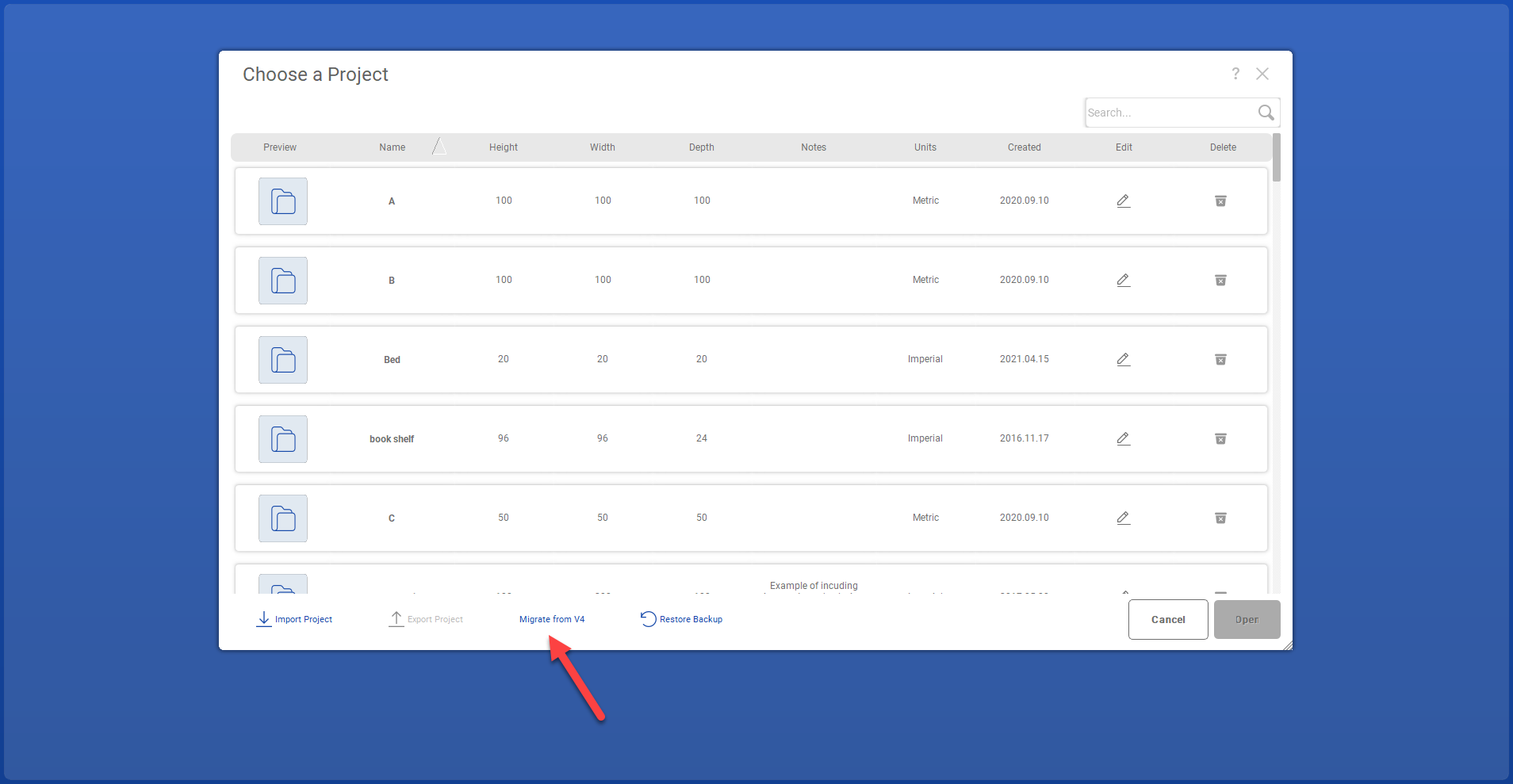
Yes, you can manually copy the V4 database. To do this, click the “Migrate from V4” button located on the “Open Project” dialog. This button will be visible if an older version of SketchList is detected on the user’s machine.
The flow will be as follows:
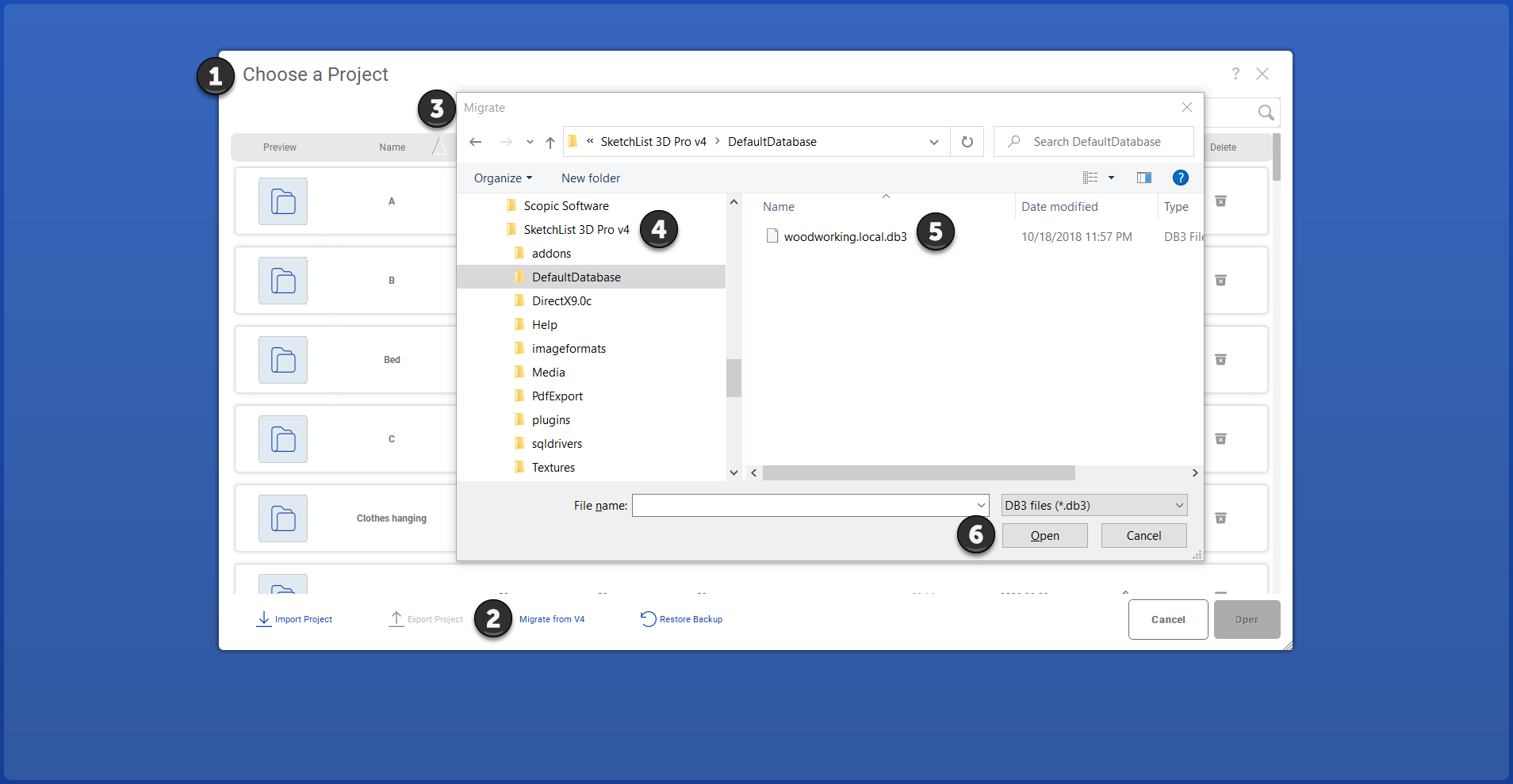
No, you can click the “Migrate from V4” button located on the “Open Project” dialog. This button will be visible if an older version of SketchList is detected on the user’s machine.
First, download SketchList 3D on your new computer. On your old computer, export all of the projects you want to save onto an external drive. Activation numbers can only be used once, so you’ll need to email us to request a new activation key once you’ve uninstalled SketchList 3D from your old device. You can then use this new key to activate SketchList 3D on your new computer and import your projects from your external drive.
NOTE: One purchase of SketchList 3D licenses you to use the software on one computer only. Running SketchList 3D on more than one computer is a violation of our licensing agreement and will result in termination.
Yes. First, uninstall and delete SketchList 3D from your previous computer. Then send us an email requesting a new activation key.
If you need to transfer SketchList 3D v5 to a new computer, simply log in to the download portal and download and install the software. Once you install the software, you can generate a new key for your new device.
You can either link to or provide information on where to find project files so that they can be transferred to a new computer. If you are reinstalling SketchList on the same computer, your data will still be available on that computer. You can find detailed instructions here: instructions
You can find instructions on how to locate the logs for SketchList 3D v5 by clicking here: instructions
You can find instructions on how to locate the SketchList 3D v5 database by clicking here: instructions
If you’re experiencing a licensing timeout error, please click here for instructions on how to resolve the issue: instructions
Our woodworking design software helps you turn time-consuming and frustrating processes into streamlined, enjoyable projects that support creative and high-quality outcomes. With SketchList 3D, you can enjoy the craft of woodworking again.
© 2025 SketchList3D Inc.
All rights reserved.
Privacy Policy | Cookies Policy